After one weekend of waffling about what to do next, I decided to learn more about Canvas UI and managing multiple scenes. I’m not doing anything complex, but it’s something to start with.
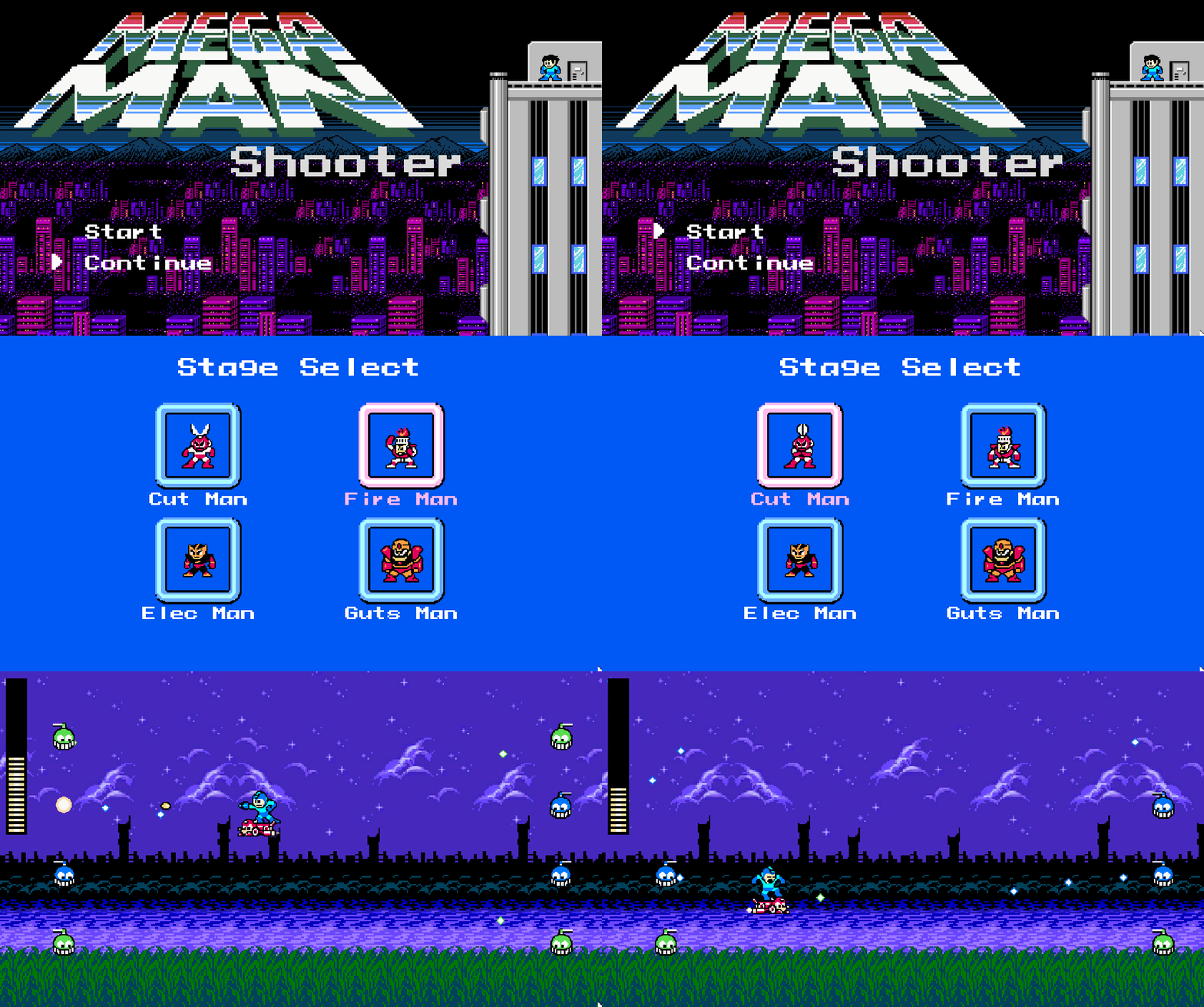
There are two commits, but this is the primary one. The second one is merely just a bug fix (kind of).
Title/Stage Select
Title
I am terrible with graphics, so I just googled some Mega Man background, a Mega Man font, and slapped them together for the title screen. I did make sure that Mega Man’s hair is whipping in the wind, at least. However, the “Start” and “Continue” text are TextMeshPro objects in Canvas, as is the selector arrow. Since I started with the title screen, this is where I did a lot of my initial learning.
Specifically, the detached selector arrow was the biggest challenge here. Initially, I added a PlayerInput component to it to track keyboard presses, and added the necessary event methods to track what happens when someone presses specific keys, moving the selector to a specific position given some array of positions. From there, the challenge became detecting which item was selected, given they were sibling objects. I hard-coded what each position does in the script, but this all seemed a bit nasty to me. Surely there’s a better way…
And then I discovered the EventSystem and its true purpose (or at least one purpose): navigation. Initially, things weren’t navigable because all I had was text, but when I adjusted them to be buttons instead (with text children), they inherently get the Selectable component (internal to the Button component, I guess) and become navigable. Not only that, but because they’re buttons, they have built in OnClick actions. This was exactly what I was looking for.
Still, the selector was a separate object, so I have to update that based on the current selection. Again, the EventSystem comes in, giving me a currentSelectedGameObject that I can use to position the selector at the button’s y coordinate. This was trivial:
private void Update()
{
    var selection = EventSystem.current.currentSelectedGameObject;
    if (selection)
    {
        transform.position = new Vector2(transform.position.x, selection.transform.position.y);
    }
}
Amusingly, the most code involved here is the blinking of the menu item before transitioning scenes. This is done by a simple coroutine in my TitleSelect component. When “Start” is selected, its OnClick event calls TitleSelect.NewGame, which begins the coroutine to blink the text. This is all wired up through Unity’s UI, which is nice. While it blinks, I disable the EventSystem as well, as we don’t want navigation happening any more. At the end, we just call the SceneLoader to load the scene specified.
Stage Select
A little more familiar with Canvas, I charged into Stage Select (after downloading some Mega Man 1 sprites). Using all the same concepts, I created buttons with images instead. Button components have a “Sprite Swap” transition that allows you to set different sprites when it’s pressed, selected, etc., which came in very useful here.
Each button has two children: the boss sprite/animation, and the name text below. Given they are children, centering everything is very easy with positioning relative to the box. Stepping back, positioning the boxes was relatively easy once I figured out relative positioning using anchors.
There are a couple scripts involved in Stage Select. Each boss object uses the StageSelectBoss component, which provides the ability to turn on/off the animation of the boss (which you can see in the gif). It also tracks the original sprite so it reverts back when not selected. With this script available, the StageSelectHighlighter component is put on the parent button, indicating what to do when selected (start animation, change text color).
Once those pair of scripts were written and working for one boss, the rest is just duplicating the structure for different bosses, and creating the different animations. This is entirely in Unity at that point, with no coding involved.
Up Next
I still want to make some UI updates to the gameplay itself, specifically tracking lives and allowing respawn. To break this into tasks:
- Before beginning the first encounter, have a “Ready” thing show up.
- Spawn animation after ready?
- Extra life drops, and tracking lives in the UI.
ScriptableObjectand persistent data updates. - Track encounter progress. If there are 6 waves, and you die in wave 3, start over at wave 3.
- Waves should not be entirely random. The same wave shouldn’t occur. Maybe randomly sort waves at start of stage, then go sequentially?
Also, I don’t like how my selector in the title screen is implemented. I think I’m going to make the selector a child of each menu item instead, and hide/show it based on the OnSelect and OnDeselect events, similar to how I’m dealing with Stage Select. This removes a check during Update, which seems like something ideal to avoid in game development since it executes each frame. I’ll always prefer event-based if I can. (Update: I made the adjustment.)
 Learning Unity 2D
Leave a comment