Learning Unity 2D

by re-creating Mega Man

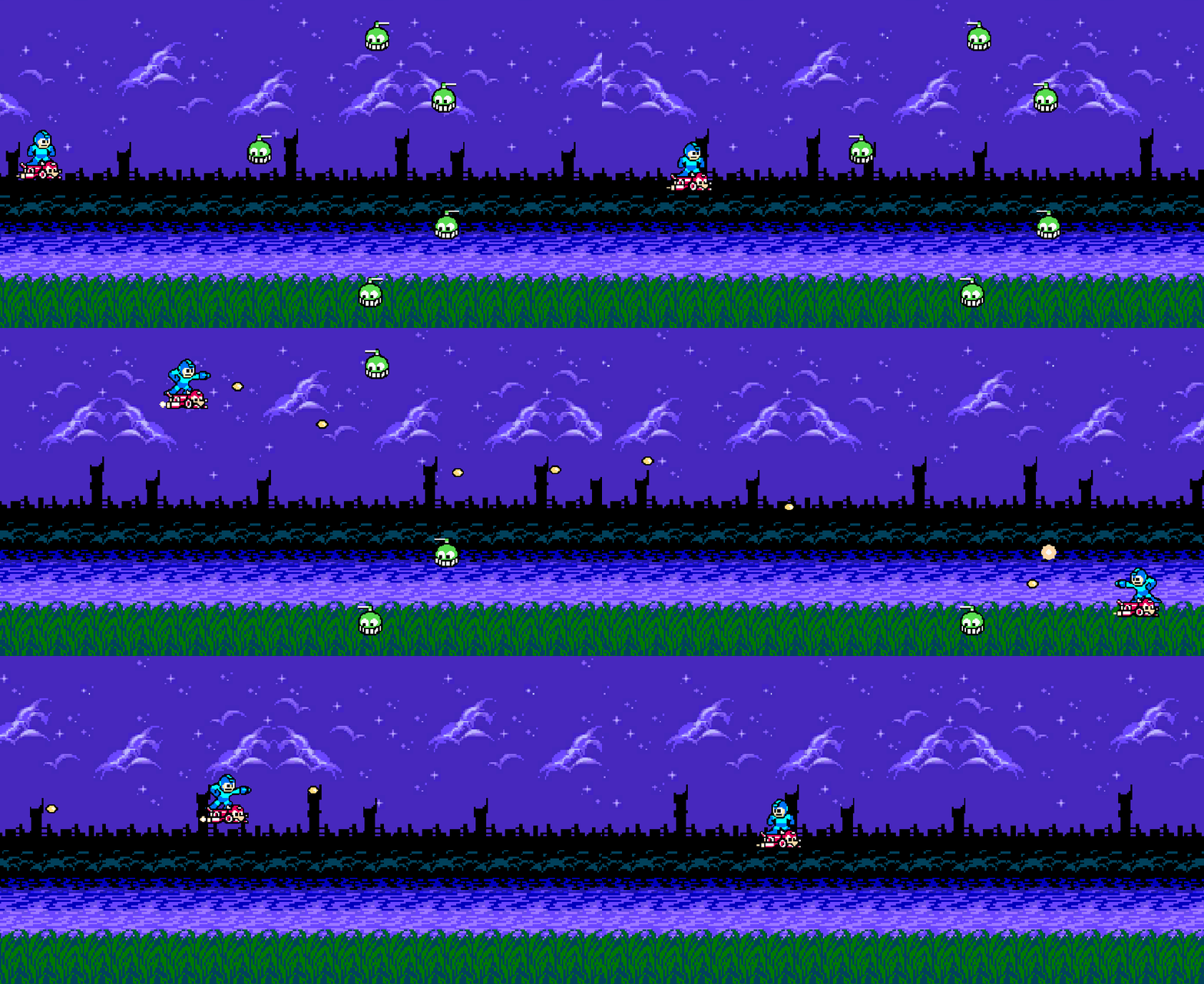
  • Today, I fleshed out “stages” more, and enabled the ability to have random encounters (from a fixed set). Additionally, I added a new enemy: a blue chopper which fires 3 bullets in rapid succession, instead of just 1 at a time. I’m not really going to get into the details about it since it’s a pretty simple implementation, though I did make an abstract Chopper object that both green and blue extend.

    Anyway, to create a random encounter, I needed to do some refactoring.

    Encounter Refactoring

    The general plan was this:

    1. A “stage” is a pool of encounters, and a number of encounters that can occur.
    2. The stage has a coroutine to spawn child coroutines, one for each encounter. When an encounter completes, wait a brief period, then start the next.
    3. The check to see if an encounter is complete should be common; I shouldn’t have to duplicate that code in each encounter.
    4. Encounters should be distinct classes, but implement a common interface so the pool of them within a stage are all of a predictable type.

    So, I created a simple encounter interface:

    public interface IEncounter
    {
        List<Enemy> Spawn();
    }
    

    And an implementation:

    public class EncounterNineRight : IEncounter
    {
        public List<Enemy> Spawn(EnemySpawner spawner)
        {
            List<Enemy> enemies = new();
            // do stuff...
            return enemies;
        }
    }
    

    But the issue here is that the encounter needs to be able to spawn enemies. However, it doesn’t extend MonoBehaviour, so it can’t access Instantiate! So, we’re going to have a new MonoBehaviour called EnemySpawner whose sole job is to give access to the creation of Enemy objects:

    public class EnemySpawner : MonoBehaviour
    {
        [SerializeField] private StageEnemy[] enemyPool;
    
        private readonly Dictionary<string, Enemy> _enemies = new();
    
        private void Awake()
        {
            foreach (var enemy in enemyPool)
            {
                _enemies.Add(enemy.name, enemy.enemy);
            }
        }
    
        public Enemy Spawn(string enemyName, Vector2 position, Quaternion rotation)
        {
            return Instantiate(_enemies[enemyName], position, rotation);
        }
    

    Note that I moved the enemyPool into EnemySpawner, rather than the stage’s MonoBehaviour. This felt like a better place for it.

    With this in hand, I can change the interface method to take this as an argument, and now implementations of the interface can utilize the EnemySpawner to create enemies. Nice. And so, my stage now has a pool of encounters, and spawns a coroutine that randomly chooses one. The logic to detect when an encounter is complete (all enemies dead) is common; it doesn’t matter which IEncounter it is, the check is the same.

    [SerializeField] private int encounterCount;
    
    private EnemySpawner _spawner;
    private readonly List<IEncounter> _encounters = new()
    {
        new EncounterNineRight(),
        new EncounterFourEachSide(),
        new EncounterWigglers(),
        new EncounterTwoCircles()
    };
    
    private void Awake()
    {
        _spawner = GetComponent<EnemySpawner>();
    }
    
    private void Start()
    {
        StartCoroutine(RunStage());
    }
    
    private IEnumerator RunStage()
    {
        var random = new System.Random();
        
        var encounters = 0;
        while (encounters < encounterCount)
        {
            var encounterIndex = random.Next(0, _encounters.Count);
            yield return StartCoroutine(RunEncounter(encounterIndex));
            encounters++;
        
            // Wait 5 seconds before the next encounter.
            yield return new WaitForSeconds(5);
        }
    }
    
    private IEnumerator RunEncounter(int encounterIndex)
    {
        var encounter = _encounters[encounterIndex];
        var aliveEnemies = encounter.Spawn(_spawner);
    
        while (aliveEnemies.Count > 0)
        {
            yield return new WaitForSeconds(1);
            aliveEnemies.RemoveAll(enemy => enemy.IsDestroyed());
        }
    }
    

    We have a nice, flexible framework to define stages now. We just create implementations of IEncounter and toss them into the _encounters pool. Once the player defeats all the enemies, we wait 5 seconds and then move on to the next one. Once we hit our count, we’re done. No victory fanfare yet, of course, but…

    Wiggler Encounter
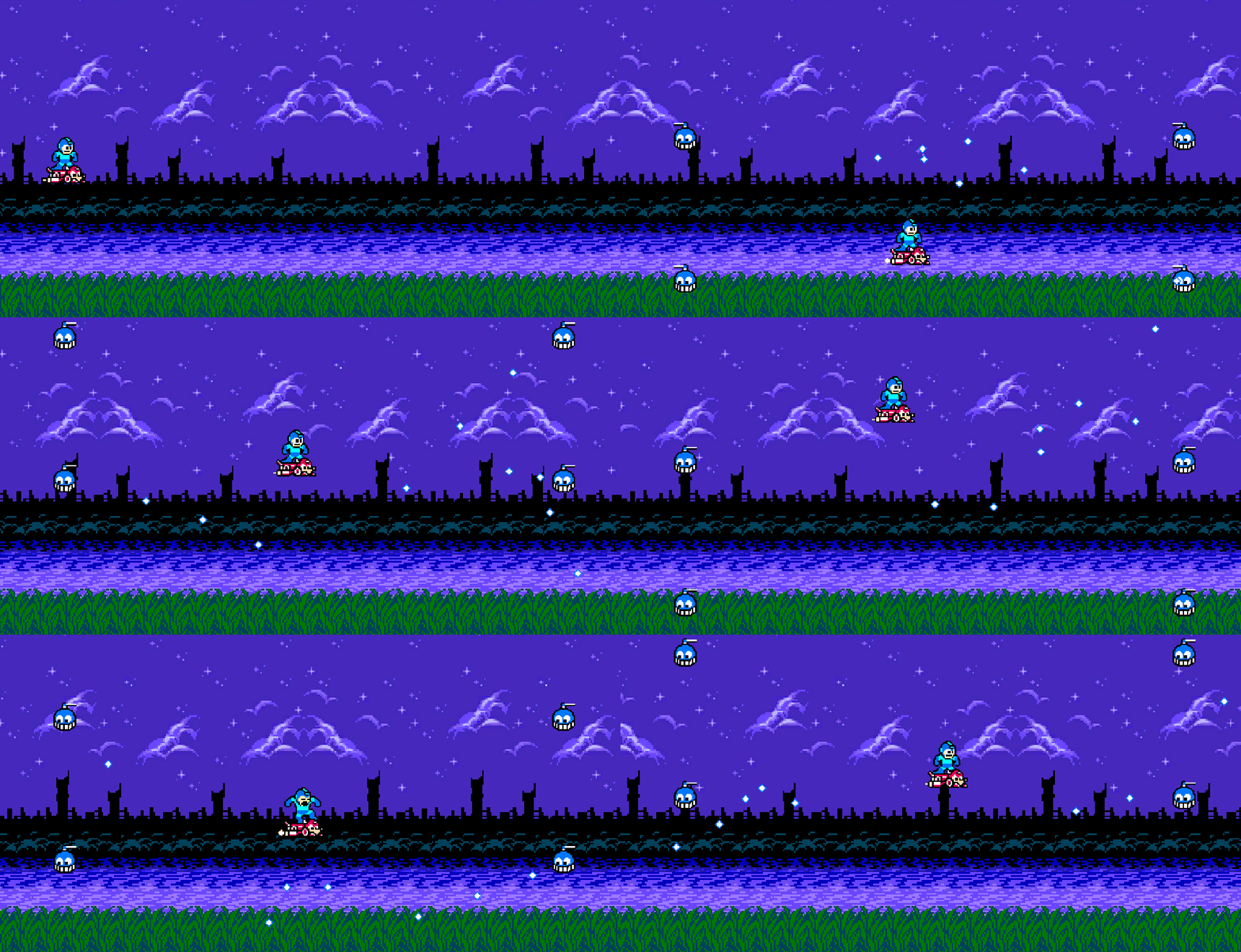
    I wanted to be able to have enemies move back in forth. For now, only vertically. Since I created a reasonable way to write new enemy actions last week (the IEnemyAction interface), I added a new VerticalWiggle action:

    public class VerticalWiggle : IEnemyAction
    {
        private readonly float _amplitude;
        private readonly float _speed;
        private readonly float _duration;
        
        public VerticalWiggle(float amplitude, float speed, float duration = -1)
        {
            _amplitude = amplitude;
            _speed = speed;
            _duration = duration;
        }
        
        public IEnumerator Action(GameObject enemyObject)
        {
            var startTime = Time.time;
            var initialY = enemyObject.transform.position.y;
            while (true)
            {
                var elapsedTime = Time.time - startTime;
                enemyObject.transform.position = new Vector2(
                    enemyObject.transform.position.x,
                    initialY + Mathf.Sin(elapsedTime * _speed) * _amplitude);
                yield return null;
    
                if (_duration > 0 && elapsedTime >= _duration)
                {
                    break;
                }
            }
        }
    }
    

    Nothing fancy, just moving back and forth either infinitely, or for a duration. I may change duration to wiggle count instead, but for now it’s duration. I had some initial issues with their movement snapping to somewhere along the amplitude, but that was fixed by calculating elapsedTime instead of just using Time.time. This action may not happen on spawn (and usually won’t), so we have to calculate based on when the action begins instead.

    Circle Encounter
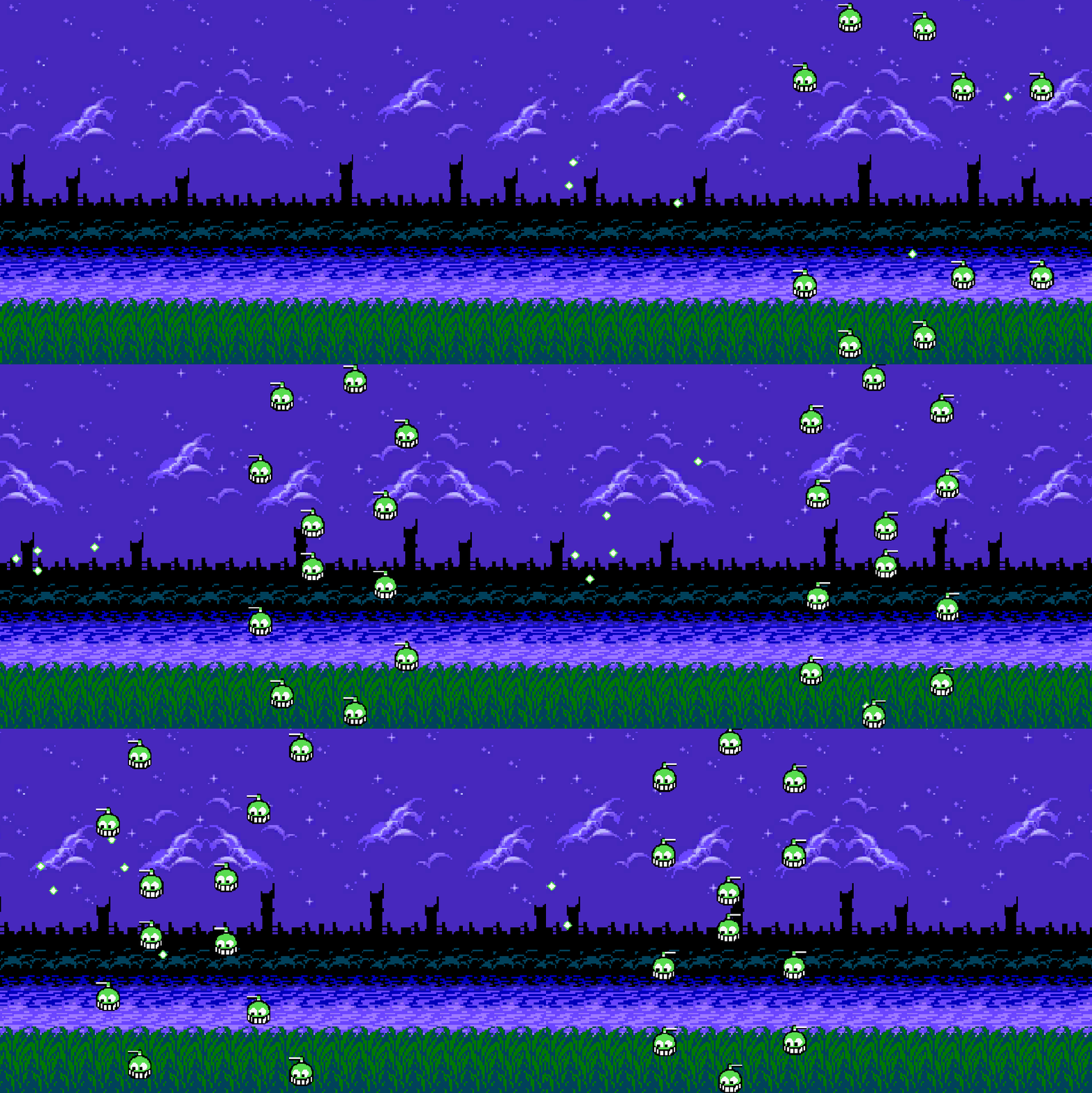
    I also want enemies to be able to move in a circle. This was a bit trickier and really had me reaching back into my brain for college trigonometry.

    Basically, we determine the center of rotation initially (based on the initial angle we’re starting at the circle), then calculate a change in angle over time and reposition accordingly. Speed works differently, since we’re calculating the change in angle, not the linear change, so I’m calculating the angular speed initially instead. This way, movement speed is analogous to linear movement elsewhere.

    Clockwise or counter-clockwise is governed by whether we reduce the angle or increase the angle. I considered using the built-in transform.RotateAround, but I wanted a way to limit the number of rotations, and it seemed harder to track that using the built-in function. If we do the math ourself, we just calculate how much angle we’ve traveled, and every 360 degrees is one rotation.

    public class Circle : IEnemyAction
    {
        private float _angle;
    
        private readonly float _radius;
        private readonly float _speed;
        private readonly float _maxAngle;
        private readonly int _direction;
    
        public Circle(
            float radius,
            float speed,
            bool isReverse = false,
            float startingAngle = 0,
            float rotations = -1)
        {
            _radius = radius;
            _speed = (speed / radius) * Mathf.Rad2Deg;
            _maxAngle = rotations * 360f;
            _direction = isReverse ? -1 : 1;
            _angle = startingAngle;
        }
            
        public IEnumerator Action(GameObject enemyObject)
        {
            var center = DetermineCenter(enemyObject.transform.position);
            var initialAngle = _angle;
            while (true)
            {
                _angle += _speed * Time.deltaTime * _direction;
                var angleInRadians = _angle * Mathf.Deg2Rad;
                
                var centerOffset = new Vector2(
                    Mathf.Sin(angleInRadians) * _radius,
                    Mathf.Cos(angleInRadians) * _radius);
                enemyObject.transform.position = center + centerOffset;
    
                if (_maxAngle > 0)
                {
                    if (Mathf.Abs(_angle - initialAngle) >= _maxAngle)
                    {
                        break;
                    }
                }
                
                yield return null;
            }
        }
    
        private Vector2 DetermineCenter(Vector3 position)
        {
            var angleInRadians = _angle * Mathf.Deg2Rad;
            var offsetX = Mathf.Sin(angleInRadians) * _radius;
            var offsetY = Mathf.Cos(angleInRadians) * _radius;
            return new Vector2(position.x - offsetX, position.y - offsetY);
        }
    }
    

    In the gif above, you can see they start rotating from 90 degrees, rotate 2.5 times, then rotate in the opposite direction, again starting from 90 degrees. The encounter code looks like this:

    public class EncounterTwoCircles : IEncounter
    {
        public List<Enemy> Spawn(EnemySpawner spawner)
        {
            List<Enemy> enemies = new();
            enemies.AddRange(SpawnCircle(spawner, 7.5f, true));
            enemies.AddRange(SpawnCircle(spawner, 2.5f, false));
            return enemies;
        }
    
        private static List<Enemy> SpawnCircle(EnemySpawner spawner, float y, bool isReverse)
        {
            List<Enemy> enemies = new();
            for (var i = 0; i < 6; i++)
            {
                var enemy = spawner.Spawn("greenChopper", new Vector2(19 + i * 2.09f, y), Quaternion.identity);
                enemy.SetActions(
                    new MoveToPosition(new Vector2(14, y), 4),
                    new Circle(2, 4, isReverse, 90, 2.5f),
                    new Circle(2, 4, !isReverse, 90));
                enemies.Add(enemy);
            }
    
            return enemies;
        }
    }
    

    The 2.09f may look like a magic number, but it’s so I could evenly space the enemies along the circumference. Given the radius is 2, and there are 6 enemies, 2πr / 6 = 2.09 units apart (r = 2).

    Up Next

    I think it’s finally time to track health visually (I’m already tracking it behind the scenes) and provide a death animation. I’m not sure if I need to do anything special for UI elements like this, but we’ll find out.
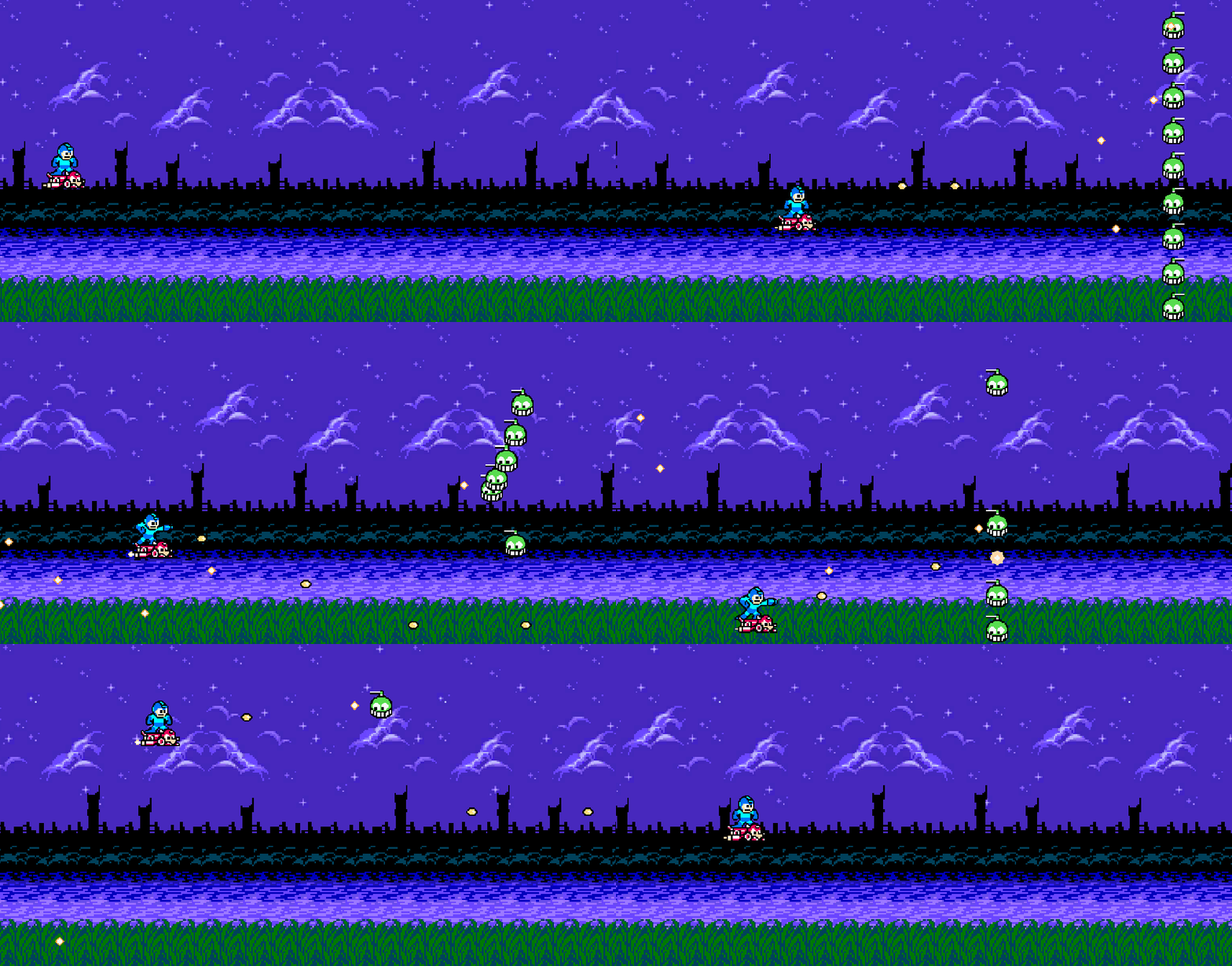
  • I swear I got hit on purpose.

    Bug Fixes

    Firing too much!

    While testing, I discovered more bullets were firing from Mega Man’s gun than should be. If I mashed the fire button quickly 5 times, several more than 5 bullets would come out.

    The problem was that in my weapon controller, the coroutine responsible for auto-shooting was only checking to see if the shoot action was in progress. If I’m mashing the button, there is a significant likelihood that even though I’m not holding, I might just happen to be pressing it when the coroutine checks. This keeps the auto-shoot coroutine going when it should’ve exited earlier. Not only that, but these coroutines can begin to stack up, so if I mashed the fire button followed by holding it down, I would have several coroutines auto-firing, yielding a stream of bullets.

    At first I though maybe I could track an _isAutoFiring bool, but that would largely suffer the same issue. I really needed to differentiate between coroutines, and exit out of it if we’ve released the key. The only way I could think of doing this is tracking an “auto shoot ID,” and only continue auto-shooting in a coroutine if the current auto-shoot ID matches the one we had when we entered the coroutine.

    That… sounds complex, but it really isn’t so bad. Minor tweaks:

    private Guid? _autoShootId;
    
    private void ShootStart(InputAction.CallbackContext context)
    {
        _autoShootId = Guid.NewGuid();
        StartCoroutine(AutoShoot());
    }
    
    private void ShootStop(InputAction.CallbackContext context)
    {
        _autoShootId = null;
    }
    
    private IEnumerator AutoShoot()
    {
        var autoShootId = _autoShootId;
        while (_shootAction.inProgress && autoShootId == _autoShootId)
        {
            yield return new WaitForSeconds(autoShootInterval);
            if (_shootAction.inProgress && autoShootId == _autoShootId)
            {
                CreateBullet();
            }
        }
    }
    

    Now the coroutine only creates bullets and continues along if the autoShootId matches the one we had when we entered. Seems to work! I don’t particularly like the solution though, so we’ll see if I can think of a better one later.

    Dead enemies shooting?!

    I noticed that after I killed an enemy, it would fire one more shot. This one was simple: there was nothing guarding the instantiation of the bullet after the coroutine finished waiting. A simple check on its health seemed to suffice:

    while (true)
    {
        yield return new WaitForSeconds(
            Mathf.Clamp(
                Random.Range(averageFireRate-1f, averageFireRate+1f), 1f, 3f));
    
        if (health > 0)
        {
            Instantiate(bullet, transform.position, Quaternion.identity);
        }
    }
    

    Encounters

    I’d been thinking about how to do this all week. Any implementation I do, I wanted a few conveniences built into the plumbing:

    • Easy way to script a chain of actions.
    • Actions should be re-usable.
    • Generic way of attaching those actions to an enemy.

    Basically, I want code to be reusable. I don’t want to have to re-script the same sort of thing (e.g. enemy moving from position A to position B). After a few iterations, I created a namespace, which I had to learn about though it’s similar to packages in Java, which I’ll make objects responsible for scripting enemy movement in.

    Each action an enemy takes will be a coroutine. When one finishes, it executes the next in sequence. For now, I’ll only have two actions:

    1. Enemy moves from to a new position at a given speed.
    2. Enemy holds at position for a specified time.

    At some point, the enemy will have a collection of actions, so an interface is necessary:

    public interface IEnemyAction
    {
        IEnumerator Action(GameObject enemyObject);
    }
    

    With this interface, I can implement my two actions.

    Wait is just a simple yield for a time period:

    public class Wait : IEnemyAction
    {
        private readonly float _waitTime;
        
        public Wait(float waitTime)
        {
            _waitTime = waitTime;
        }
    
        public IEnumerator Action(GameObject enemyObject)
        {
            yield return new WaitForSeconds(_waitTime);
        }
    }
    

    Moving to a position is a wee bit more challenging, but still pretty simple. I had to discover that yield return null is like waiting for the next frame, so movement works exactly like within Update here:

    public class MoveToPosition : IEnemyAction
    {
        private readonly Vector2 _destination;
        private readonly float _speed;
        
        public MoveToPosition(Vector2 destination, float speed)
        {
            _destination = destination;
            _speed = speed;
        }
        
        public IEnumerator Action(GameObject enemyObject)
        {
            var isComplete = false;
            while (!isComplete)
            {
                var step = _speed * Time.deltaTime;
                var newPosition = Vector2.MoveTowards(
                    enemyObject.transform.position,
                    _destination,
                    step);
                enemyObject.transform.position = newPosition;
    
                if (newPosition == _destination)
                {
                    isComplete = true;
                }
                
                yield return null;
            }
        }
    }
    

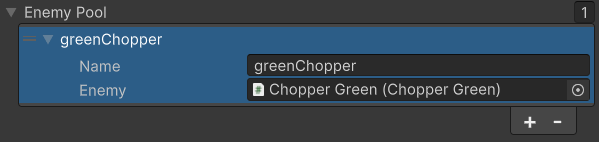
    The next step was to make an encounter game object, with a script inside of it. This script would be responsible for spawning the enemies and setting up their actions. However, this script will need a list of enemies. In an effort to make this generic in the future, ideally I’d like a dictionary from enemy name to prefab. There’s no built-in way to do this in Unity’s inspector, but after some discussion with Gemini, we can use a generalized struct to get effectively the same result:

    [System.Serializable]
    public struct StageEnemy
    {
        public string name;
        public Enemy enemy;
    }
    

    And then in my stage script, we’ll have a serialized field StageEnemy[]. Then, we can easily set things up in the inspector:

    Then, from the array, I can make a Dictionary in Awake, and I have the convenient collection that I desired.

    Before I can complete this script, we need a way to pass actions to the enemies. So, in our base Enemy class, I added a few things:

    private IEnemyAction[] _actions;
    
    void Start()
    {
        OnStart();
        if (_actions != null)
        {
            StartCoroutine(ExecuteActions());
        }
    }
    
    protected virtual void OnStart()
    {
        // Does nothing by default.
    }
    
    private IEnumerator ExecuteActions()
    {
        foreach (var action in _actions)
        {
            yield return StartCoroutine(action.Action(gameObject));
        }
    }
    
    public void SetActions(params IEnemyAction[] actions)
    {
        _actions = actions;
    }
    

    I learned that Awake happens when an object in instantiated, but Start doesn’t occur until the next frame. Thus, I have time to set the actions before Start occurs. However, my implementation of Enemy (ChopperGreen) already had Start, so Enemy.Start wasn’t getting called. Hence, I had to create a virtual OnStart method and update the implementation to use that instead of Start.

    Once all that plumbing is done, we can finally begin scripting the encounter. The plumbing is extremely important, because it’ll make scripting other encounters much easier. They all pull from a generic framework and I only have to write the encounter itself next time, not all the plumbing (at least I hope).

    [SerializeField] private int encounterCount;
    [SerializeField] private StageEnemy[] enemyPool;
    
    private readonly Dictionary<string, Enemy> _enemies = new();
    
    private void Awake()
    {
        foreach (var enemy in enemyPool)
        {
            _enemies.Add(enemy.name, enemy.enemy);
        }
    }
    
    private void Start()
    {
        StartCoroutine(NineRight());
    }
    
    private IEnumerator NineRight()
    {
        List<Enemy> aliveEnemies = new();
        for (var i = 1; i <= 9; i++)
        {
            var y2 = 10 - i;
            var enemy = Instantiate(_enemies["greenChopper"], new Vector2(19, i), Quaternion.identity);
            enemy.SetActions(
                    new MoveToPosition(new Vector2(16, i), 4),
                    new Wait(3),
                    new MoveToPosition(new Vector2(11, y2), 4),
                    new Wait(3),
                    new MoveToPosition(new Vector2(6, i), 4),
                    new Wait(3),
                    new MoveToPosition(new Vector2(1, y2), 4));
            aliveEnemies.Add(enemy);
        }
    
        while (aliveEnemies.Count > 0)
        {
            yield return new WaitForSeconds(1);
            aliveEnemies.RemoveAll(enemy => enemy.IsDestroyed());
        }
    }
    

    For now, there’s only one encounter. In the future, I’ll have a List<System.Func<IEnumerator>> and I’ll randomly pick one, wait for the player to complete the encounter, then start the next one up to the encounterCount. We only have one, so I didn’t write that part, but it should be a relatively simple addition.

    Up Next

    More enemies! More encounters! The fun stuff.

    Eventually, I want to track health visually on the screen, and provide a death animation.

  • Progress!

    And yes, I am tracking his health. Each bullet has a damage to it. And he also gets hit if he runs into an ememy. Niiiice.

    Coroutines

    I was introduced to a new concept in Unity called a coroutine. Java (my native language) doesn’t really have anything super analogous; typically, I’d just spawn a second thread and sleep for a period before executing. However, after asking Gemini a bit, it appears that’s inadvisable in Unity because things generally run on the main thread.

    I discovered a need for coroutines because I wanted enemies to blink whenever they get hit. You can kind of see it in the gif above (though it has a low framerate): each enemy takes two shots, and it blinks when it gets hit by the first shot. I wanted an indicator the shot landed.

    To do this, I used a coroutine. Basically, the main thread will execute the coroutine until it hits a yield, at which point it pauses the coroutine and resumes the other part of the main thread… or, at least that’s how I’m using it right now. So, to get the flashing effect, we start a coroutine which changes the sprite’s alpha to 50%, then yields for 0.15 seconds before returning back to normal. Thus, a 0.15 second flash. I made this change to the base Enemy so other extending classes can benefit:

    private readonly Color _flash = new Color(1f, 1f, 1f, 0.5f);
    
    protected void Hit()
    {
        StartCoroutine(Flash());
    }
    
    private IEnumerator Flash()
    {
        var original = _spriteRenderer.color;
        _spriteRenderer.color = _flash;
        yield return new WaitForSeconds(0.15f);
        _spriteRenderer.color = original;
    }
    

    And now, in my enemy implementation script, I can just call Hit whenever it gets hit but doesn’t die. It flashes!

    Of course, I didn’t stop there. Remember my auto-firing script from before? While I’m happy I was able to think through it a bit, coroutines make life a lot easier here. I don’t have to track when the next shot is, I can just yield for some time, then fire again so long as the button is still being held. Whenever they press the shoot button, we fire the started event, which calls ShootAction, which starts the coroutine if the button is being pressed:

    public float autoShootInterval = 0.2f;
    
    private void ShootAction(InputAction.CallbackContext context)
    {
        if (!_shootAction.inProgress) return;
        StartCoroutine(AutoShoot());
    }
    
    private IEnumerator AutoShoot()
    {
        while (_shootAction.inProgress)
        {
            yield return new WaitForSeconds(autoShootInterval);
            if (_shootAction.inProgress)
            {
                CreateBullet();
            }
        }
    }
    

    Significantly simpler than before.

    Enemy Shots

    We need our little chopper guys shooting. I created another prefab for an enemy bullet. Luckily, I already refactored, so it can just extend Projectile and it has most of what I need. I just need to override the GetInitialDirection method to point the bullet at the player. This isn’t a tracking bullet, so it’s still straight once fired, so we only need to set the initial direction.

    Luckily, we can do this with a tag. I tagged Mega Man with the “Player” tag, and we can get it position by getting the tagged game object, do a little vector math, and normalize. Thus, we get this:

    protected override Vector2 GetInitialDirection()
    {
        var player = GameObject.FindGameObjectWithTag("Player");
        var direction = player.transform.position - transform.position;
        direction.Normalize();
        return direction;
    }
    

    Of course, our enemy now has to actually shoot bullets. Time for another coroutine! These are coming in highly useful. I want them to shoot every 1-3 seconds (randomly) while they’re alive, so I kick off a coroutine inside of Start:

    [SerializeField] private float averageFireRate = 2f;
    [SerializeField] private Projectile bullet;
    
    private void Start()
    {
        StartCoroutine(Attack());
    }
    
    private IEnumerator Attack()
    {
        while (true)
        {
            yield return new WaitForSeconds(
                Mathf.Clamp(
                    Random.Range(averageFireRate-1f, averageFireRate+1f), 1f, 3f));
            Instantiate(bullet, transform.position, Quaternion.identity);
        }
    }
    

    Once I hooked up the bullet prefab to the script, we’re shooting. Nice.

    Enemy Damage

    NO MORE INVINCIBILITY! Mega Man must take damage!

    I tossed a Rigidbody2D (kinematic) on him with a PolygonCollider2D. I don’t want shots that hit the edge of his rectangular sprite area (much of which is transparent space) to register as hits, only when it hits is sprite, so the polygon collider allows me to be more precise.

    Additionally, to the Mega Man game object, I added another animation of him getting hit. Really, the hardest part about all of this is getting the animation right… I really suck at that. The animation triggers whenever the “isHit” property is flipped to true. We’ll need to make sure it’s flipped back to false quickly so he doesn’t play the animation multiple times.

    Finally, I want him to be invulnerable for a couple seconds (and flashing) so he can’t just get spam hit. As you can imagine, it’s time for yet another coroutine. So, to the Mega Man script, we’ve got quite a few changes. I’ll go section by section.

    private readonly int _hitAnimId = Animator.StringToHash("isHit");
    private readonly Color _flash = new Color(1f, 1f, 1f, 0.2f);
    
    [SerializeField] private float health = 100;
    [SerializeField] private float invulnerabilityDuration = 2f;
    
    private bool _isInvulnerable = false;
    

    Some properties we need to keep track of:

    • _flash – Alpha used for blinking (20%).
    • _hitAnimId – ID of the “isHit” parameter of the animation.
    • health – Total health.
    • invulnerabilityDuration – How long he stays invulnerable.
    • _isInvulnerable – Whether he’s invulnerable right now.

    And now, the collision trigger.

    private void OnTriggerEnter2D(Collider2D other)
    {
        if (!_isInvulnerable)
        {
            float damage = 0f;
            
            // Hit by a bullet.
            if (other.CompareTag("EnemyBullet"))
            {
                damage = other.GetComponent<Projectile>().GetDamage();
                Destroy(other.gameObject);
            }
            
            // Hit by an enemy directly.
            if (other.CompareTag("Enemy"))
            {
                damage = 50f;
            }
    
            if (damage > 0f)
            {
                health = Mathf.Max(0, health - damage);
                StartCoroutine(Invulnerable());
            }
        }
    }
    

    I have added two tags to some prefabs: enemies will be tagged with the “Enemy” tag, and enemy projectiles are tagged with “EnemyBullet”. In the future, projectiles and enemies may have different damage, so I wanted to separate those two now since they are different components.

    So, firstly, we skip all of this if he’s invulnerable. Then, we figure out how much damage he’s taking. If it’s a bullet, we get the component’s damage value and destroy it. If it’s the enemy itself (Mega Man flew into it), I’m just doing a flat 50 damage for now. If he’s damaged at all, recalculate his health and start the invulnerability coroutine:

    private IEnumerator Invulnerable()
    {
        _isInvulnerable = true;
        _animator.SetBool(_hitAnimId, true);
        
        var original = _spriteRenderer.color;
        var flashDelay = 0.07f;
        float startTime = Time.time;
        while (Time.time < startTime + invulnerabilityDuration)
        {
            yield return new WaitForSeconds(flashDelay);
            _animator.SetBool(_hitAnimId, false);
            _spriteRenderer.color = _flash;
            yield return new WaitForSeconds(flashDelay);
            _spriteRenderer.color = original;
        }
    
        _isInvulnerable = false;
    }
    

    This is a bit more complex, I think. Not too bad though:

    1. Mark him as invulnerable.
    2. Set “isHit” to true so the hit animation begins.
    3. Get the original color (alpha) of the sprite and keep track of it.
    4. Also keep track of the time he got hit.
    5. Loop until the invulnerability duration is hit.
      • Each iteration will wait a delay of time, change his alpha to flash, waiting again, then change back to the original.
      • Also, set “isHit” back to false so the animation doesn’t keep playing.
    6. Once the duration has passed, set his vulnerability back to false so he can get hit again.

    In retrospect, I don’t like the handling of “isHit” here. It seems odd to set it in the loop, but I noticed that if I set it to false before the first delay, the animation doesn’t play at all. Perhaps parameters aren’t the right solution here, and we should figure out a way to play a specific animation once instead.

    Anyway, in the end, he can now get his and hit health drops appropriately. He doesn’t die yet, but his health can definitely hit zero.

    Up Next

    I really want to script encounters, so that’s probably next.

  • Progress

    I think I’ll just always post a gif of my latest progress with each post, highlighting the new stuff.

    Refactoring

    Before I begin, I wanted to do some refactoring. Use a little bit of my knowledge of OOP to prepare for the future. The bullet object I made before was very specific; if I wanted different weapons, I’d have to make more prefabs with the same properties. However, some properties of bullets are common (speed, damage), so it makes sense to have an abstract class for them. So, that’s what I did.

    There were some other things that I wanted to do as well:

    • Add a damage property to the bullet. Enemies will have health; they can’t all just die in 1 shot!
    • Stop using FixedUpdate to adjust position of the bullet, using Update instead so it appears smoother. This also requires not using Rigidbody2D.linearVelocity since physics should use FixedUpdate.
    • Add a method so inheritors can change the direction if need be.

    And so, an abstract Projectile class was born:

    public abstract class Projectile : MonoBehaviour
    {
        [SerializeField] private float speed;
        [SerializeField] private float damage;
    
        private Vector2 _direction;
    
        protected abstract Vector2 GetInitialDirection();
    
        protected void SetDirection(Vector2 direction)
        {
            _direction = direction;
        }
    
        public float GetDamage()
        {
            return damage;
        }
    
        private void Awake()
        {
            _direction = GetInitialDirection();
            Destroy(gameObject, 2);
        }
    
        private void Update()
        {
            var scale = speed * Time.deltaTime;
            transform.position += (Vector3) _direction * scale;
        }
    
        public void FlipDirection()
        {
            _direction.x *= -1;
        }
    }
    

    Now my original StraightProjectile class becomes very simple:

    public class StraightProjectile : Projectile
    {
        protected override Vector2 GetInitialDirection()
        {
            return new Vector2(1, 0);
        }
    }
    

    The idea here is that perhaps future straight projectiles can also extend this class if they need to do anything custom. Maybe not, but hey, we can dream…

    Vectors

    I just want to note that learning how to adjust the position myself, rather than rely on tutorials to adjust linearVelocity and whatnot, as been key in understanding positioning in general. I don’t know why I didn’t fully understand it before, as it’s so clear now, but basically a Vector2 is simply an (x, y) and a Vector3 is simply an (x, y, z).

    I think some of the confusion has been whether a vector has a magnitude or not. You could probably see that confusion clearly in my previous post on constraining movement. The solution to provide boundaries was… a bit ridiculous. I had the intuition that it was ridiculous at the time:

    I’ll probably look for other solutions here, as this method feels nasty to me.

    And so, after adjusting the bullet to be positioned in Update, avoiding linearVelocity, I feel like I now understand how the positioning should work. Basically, when we move, we have a current position, and we adjust that position by calculating speed times delta time times the directional vector. Once we multiply all that out, that basically gives us a “delta” vector (how much each position is changing), which we can add to the current position. You can see that’s exactly what I did in the bullet code above.

    Armed with this knowledge, we can now make Mega Man’s movement smoother by using Update, and also refactor that “nasty” code from before. We still need to clamp it, of course, but we can use math functions for that now:

    private void Update()
    {
        var scale = moveSpeed * Time.deltaTime;
        var delta = _movement * scale;
        var unclampedPos = (Vector2) transform.position + delta;
        transform.position = new Vector2(
            Mathf.Clamp(unclampedPos.x, MIN_X, MAX_X),
            Mathf.Clamp(unclampedPos.y, MIN_Y, MAX_Y));
    }
    

    I am much happier with this. There could still be a better way, but this seems so much cleaner. He’s now smoother as well, and best of all… no more edge bounce! FixedUpdate was screwin’ me over. 🙂

    Enemies

    Now we need something to shoot at. The little chopper enemies from Mega Man 1’s Cut Man stage will work. I created a quick animation of its little chopper at the top moving back and forth, and then set out to learn about colliders. I knew I needed to add a Collider2D to both the bullet and the enemy, but what do I do once I have?

    Gemini helped me out. I’m liking this better than finding tutorials on the internet because I feel like I have to put the pieces together, not just copy the already put together pieces someone else has done. So, I fired it various questions about colliders, and rigid bodies, learning the differences between kinematic/dynamic/static, etc.

    Since this is a shooter and most objects are not subject to physics (at least not yet?), they are kinematic. If kinematic, then the colliders need “Is Trigger” checked in order to detect collisions. If we’re using kinematic objects with triggers, we can detect the collisions in a OnTriggerEnter2D method.

    As such, I gave my enemy’s script some health, and implemented the method:

    [SerializeField] protected float health = 10;
    
    private void OnTriggerEnter2D(Collider2D other)
    {
        if (other.CompareTag("PlayerBullet"))
        {
            var projectile = other.GetComponent<Projectile>();
            health = Mathf.Max(0, health - projectile.GetDamage());
            Destroy(other.gameObject);
        }
    
        if (health <= 0)
        {
            Destroy(gameObject);
        }
    }
    

    Once they reach zero health, the object is destroyed. And, once tested, the enemies do indeed disappear when health hits zero. Bullets also disappear, due to the Destroy(other.gameObject) call.

    Disappearing enemies is boring. I want an explosion. So, I created a small explosion animation, and in the animator for the enemy, we transition to the explosion animation when the isDead parameter is turned on. However, even if I add that just before the Destroy call above, the object disappears before the animation is played.

    I don’t want to destroy the game object until that animation is done. After some learning, we can put triggers in our animations. So, at the end of the animation, I want to trigger a method that finally destroys the object. Destruction is now handled by that trigger method, not the OnTriggerEnter2D method. However, the on-trigger method will need to set the parameter to transition to the explosion animation.

    After a little thinking, since we’ll have more enemies and I want them all to die at some point, I decided to make a base Enemy class, which my Green Chopper enemy will implement. The base class will take care of the wiring of setting the animation property and destroying the game object so the implementation doesn’t have to worry about anything other than calling the death method. And so, my base Enemy class looks like this:

    public abstract class Enemy : MonoBehaviour
    {
        private readonly int _isDeadAnimId = Animator.StringToHash("isDead");
        
        [SerializeField] protected float health = 10;
        
        private Animator _animator;
    
        void Awake()
        {
            _animator = GetComponent<Animator>();
        }
        
        protected void Die()
        {
            _animator.SetBool(_isDeadAnimId, true);
            GetComponent<Collider2D>().enabled = false;
        }
    
        public void DestroyGameObject()
        {
            Destroy(gameObject);
        }
    }
    

    And my Green Chopper enemy class extends Enemy instead of MonoBehavior, and instead of calling Destroy when it’s dead, we call Die. This will set the death parameter, which transitions to the explosion animation, which triggers DestroyGameObject when it’s done. Perfect!

    Up Next

    Whew, that’s a lot for one session, but I feel like I’m getting the hang of it more and more.

    I’ve got two directions I could go here:

    1. Events. That is, enemy spawning events. Different formations, movement, etc.
    2. Player health and damage. Mega Man can’t be invincible, and since this is a shoot ’em up, he probably won’t be able to take many hits (or it would be too easy).

    Not sure which I’ll go with. For events, I want to make it robust enough that we can have a variety of enemy formations, and we can randomize which events we get. For instance, if there are 6 different enemy formations, I’d pick maybe four randomly, each one starting after a brief delay once the previous event is over (all enemies defeated).

    For player health, I’d need some more Mega Man animations when he gets hit, and need to track his health. He’d obviously need a collider, too. Similar to what I’ve done for enemies, really, except with Mega Man and a hit animation.

  • To shoot backwards, there really only seems to be three things I have to do:

    1. Add another action to the player input controls.
    2. Flip the Mega Man game object.
    3. Adjust which direction the bullet is traveling.

    I thought I might have to adjust the position of the gun object, but since that’s a child of Mega Man, so long as we flip him, the gun flips as well. Nice. After some searching, I discovered the lovely localScale property on the Transform that I can use. So, after adding a “Direction” key to the player input, I can just flip Mega Man.

    However, one minor complexity here: I don’t currently have a script on Mega Man! So far, there’s just a movement script on the “Player” game object (which comprises of both Mega Man and Rush), and one for the “Gun” object (for spawning bullets). Now was a good time to clean up that ugly transform.parent.parent that I was using on the gun to reference the player input on the grandparent player object. So, the plan was:

    1. Add a Player Input component to both Mega Man and the child Gun.
    2. Move the animation-relevant stuff from the Gun’s script to a new script for Mega Man. The Gun’s responsibility now is solely to spawn bullets, not control Mega Man’s animation.
    3. Add a new performed event for the new Direction input which flips Mega Man’s localScale.

    And so, our new Mega Man script is born, whose current responsibility is solely Mega Man’s animations:

    void Awake()
    {
        _animator = transform.GetComponent<Animator>();
        var playerInput = transform.GetComponent<PlayerInput>();
        
        _shootAction = playerInput.actions["Shoot"];
        _flipDirection = playerInput.actions["Direction"];
        
        _shootAction.started += Shoot;
        _shootAction.canceled += Shoot;
        _flipDirection.performed += FlipDirection;
    }
    
    private void OnDestroy()
    {
        _shootAction.started -= Shoot;
        _shootAction.canceled -= Shoot;
        _flipDirection.performed -= FlipDirection;
    }
    
    private void Shoot(InputAction.CallbackContext context)
    {
        _animator.SetBool(_shootAnimId, _shootAction.inProgress);
    }
    
    private void FlipDirection(InputAction.CallbackContext context)
    {
        var scale = transform.localScale;
        transform.localScale = new Vector3(scale.x * -1, scale.y, 1);
    }
    

    Cool. Now he flips whenever I press the Direction key! Bullets are all still traveling right though, so I need to make the bullets direction non-static (the Vector2 for the direction was a readonly property), and then set that direction whenever I spawn a new bullet if it deviates from the default (to the right).

    So, a direction flipping method on the projectile’s script:

    private Vector2 _direction = new Vector2(1, 0);
    
    public void FlipDirection()
    {
        _direction.x *= -1;
    }
    

    And a modification to the method that spawns the bullets:

    private InputAction _flipDirection;
    private bool _isReverseDirection;
    
    private void Awake()
    {
        var playerInput = transform.GetComponent<PlayerInput>();
        _flipDirection = playerInput.actions["Direction"];
        _flipDirection.performed += FlipDirection;
    }
    
    private void OnDestroy()
    {
        _flipDirection.performed -= FlipDirection;
    }
    
    private void FlipDirection(InputAction.CallbackContext context)
    {
        _isReverseDirection = !_isReverseDirection;
    }
    
    private void CreateBullet()
    {
        var bullet = Instantiate(weapon, transform.position, Quaternion.identity);
        if (_isReverseDirection)
        {
            bullet.FlipDirection();
        }
    }
    

    Nice. Every time I flip him, bullets travel in the opposite direction. Now I can script encounters that can spawn enemies on both sides and the player can feasibly attack either side.

    Next Up

    Now it gets harder. Basic movement and shooting is there… but there’s still nothing to shoot at. It’s time to make some targets. Perhaps they don’t shoot back or move yet, but something to shoot at. I think the steps here are:

    1. Put some objects to shoot at that get destroyed when a bullet hits them.
    2. Add destruction animation to those enemies.
    3. Make enemies shoot at the player.
    4. Detect player getting hit (not tracking damage/death yet).
    5. Add enemy movement.
    6. Add “encounter” scripts to spawn them off screen.

    Quite a lot to do, likely not in one session. Ideally, enemy spawns are scripted encounters that I can pick randomly and are easy to script individually. We have a ways to go to get there, though! Start simple.

  • No longer is Mega Man flying through the void:

    Very cool. I looked for a lot of solutions to this online, and it seems everyone did it differently. Some folks used actual 3D objects (Quad?), and others used various strategies to repeat the background. It seems like the 2D technique that fits best is to have a background at least 2x (or 3x if you want to be able to go either direction) the size of the camera, then just move its x-position until you’ve moved it 1 length of the image, then reset position. Simple enough.

    But now here’s the big problem for me: where do I get a background, much less a parallax one?! Well, I found this website which had some Mega Man backgrounds, and I chose one that might be nice broken up into parts. Bumbling my way through with GIMP, I just created a variety of images of different parts by selecting a layer, chopping it out, doubling its length, and saving it.

    Contrary to the gif above, I actually made 4 layers, separating the buildings and the river. That said, I thought it looked better with those two layers moving at the same speed. Once all tiled up inside of an empty object, I utilized the sorting layers in Unity to control which is on top of which. I realize I could’ve used the “Order in Layer” properties of the sprite renderer, but that seems messier to manage over time.

    Once everything is layered appropriately, we just needed a script to control the movement. I mostly followed this YouTube video, but my starting x-position was not zero, so I had to make a few tweaks. This is what I ended up with:

    public float moveSpeed;
    public bool scrollLeft;
    
    private float _initialXPosition;
    private float _singleTextureWidth;
    
    void Start()
    {
        Sprite sprite = GetComponent<SpriteRenderer>().sprite;
        _singleTextureWidth = sprite.texture.width / sprite.pixelsPerUnit;
        _initialXPosition = transform.position.x;
        if (scrollLeft)
        {
            moveSpeed = -moveSpeed;
        }
    }
    
    void Update()
    {
        transform.position += new Vector3(moveSpeed * Time.deltaTime, 0, 0);
        if (Mathf.Abs(transform.position.x - _initialXPosition) - _singleTextureWidth > 0)
        {
            transform.position = new Vector3(_initialXPosition, transform.position.y, transform.position.z);
        }
    }
    

    The only appreciable difference here is the _initialXPosition variable. Nice!

    Frustration

    I had significant frustration starting out today. For some reason, the Unity Editor is laggy and flickering on one monitor. It probably has something to do with refresh rates, but I can’t figure out the problem. For now, I’m putting the editor on my smaller monitor, and that seems to be a workaround… but it’s smaller, and I’d really prefer to have it on the larger monitor. If I figure out what’s going on (likely something relating to refresh rates), I’ll post an update. It took almost two before I figured out that it was a monitor problem, not a Unity problem. Annoying.

    Up Next

    I think it’d be really cool if Mega Man could turn around and shoot to the left. It sort of unlocks a different facet of potential gameplay. It’d also be nice if there was something he could shoot at, or shot at him. I’m not sure which of these I’ll do next, but probably the turn-around. My thoughts on what I’d have to do to implement:

    • Add input button for turning around (A-key is no good because I want to be above to shoot right while moving left).
    • Flip the animations horizontally if the key is pressed. I don’t want to make duplicate sprites though. Can I do this with the animator? We’ll find out.
    • Make sure when he shoots, the bullet travels negative, rather than positive x.
  • Movement Cleanup

    Earlier, I put a PlayerInput component on both Rush and Mega Man. While they used the same script, so moved in tandem, it felt odd that technically they moved independently. Could I move the PlayerInput to the parent object instead?

    The answer ended up being “yes,” by utilizing transform.parent to reference the parent’s PlayerInput on the children. Since the Mega Man script was responsible for shooting, it needed a tweak to use transform.parent.GetComponent<PlayerInput>() instead, in order to set the events for shooting. Otherwise… it all seemed to work. Movement was now controlled by the parent object instead.

    The shooting still bothered me for two reasons:

    1. The bullet originated from the middle of Mega Man, rather than his gun.
    2. He looks like he’s shooting when the button is held down… but ultimately just sat there.

    So, I created an empty game object as a child of Mega Man called “Gun”. I moved this freely to me aligned with the muzzle of his gun, and moved all the shooting logic in Mega Man’s script to the Gun instead (removing the Mega Man script entirely). This did, however, mean now I needed to use transform.parent.parent to get the grandparent’s PlayerInput. Ugly, and there might be a better way, but it works for now. Now bullets originate from the Gun object, which is in front of the muzzle of Mega Man’s gun. Nice.

    For the auto fire, that took a little bit of creativity. I don’t want to spawn a bullet every frame, but I do want the fire rate to be configurable. I figured maybe every 0.2 seconds will work for now. If I look at how long the player has held down the fire key, I can determine if I need to create a new bullet object. However, given frames are inconsistent, I can’t just check absolute values (e.g. elapsedTime is a multiple of 0.2), so instead I’ll track when the next bullet is due to fire, and create an object if we’ve moved past that time point.

    Written out, this doesn’t make a lot of sense probably. Basically, I need to:

    • Track when the player started holding fire.
    • Calculate the elapsed time since firing.
    • If that time is greater or equal to when the next bullet should be fired, fire.
    • Increment the time for the next bullet by the interval we choose (0.2 seconds).

    In code, it looks something like this:

    public double autoShootInterval = 0.2d;
    private double _shootStartTime;
    private double _nextAutoShootTime;
    
    private void ShootAnim(InputAction.CallbackContext context)
    {
        _animator.SetBool(_shootAnimId, _shootAction.inProgress);
        if (_shootAction.inProgress)
        {
            _shootStartTime = context.startTime;
            _nextAutoShootTime = autoShootInterval;
        }
    }
    
    private void FixedUpdate()
    {
        if (_shootAction.inProgress)
        {
            double elapsedTime = Time.realtimeSinceStartup - _shootStartTime;
            if (elapsedTime > _nextAutoShootTime)
            {
                _nextAutoShootTime += autoShootInterval;
                CreateBullet();
            }
        }
    }
    
    private void CreateBullet()
    {
        Instantiate(weapon.gameObject, transform.position, Quaternion.identity);
    }
    

    So, when they press the button, we track the time in _shootStartTime so we can calculate elapsed time. We also set _nextAutoShootTime to our initial value (0.2). Then, as we update, if they’re still holding the button, calculate the time they’ve been holding it and see if we’ve passed our next auto shot time. If we have, shoot, and increment the next auto shot time.

    Took some thinking, but seems to work!

    Boundaries

    The official Unity tutorials (at least the essentials) used Rigidbodies and Body Colliders to restrict movement. They created an off-screen wall which you collide into. I implemented that initially, but it had more physics to it than I’d like. Likely I could remove the physics, prevent the sprites from rotating, etc… but restricting movement in the controller script seemed better.

    In order to do that, I needed the min/max x and y coordinates. This was one of the reasons I wanted to put the PlayerInput for movement on the parent object: so the min/max coordinates would apply to both Mega Man and Rush. In game mode, I just moved around and watched my coordinates in the inspector, keeping track of what seemed like a reasonable min/max. With those in hand, I made some readonly variables to hold them.

    Then, I just capped the position when updating:

    _body.position = new Vector2(
        Mathf.Clamp(_body.position.x, MIN_X, MAX_X),
        Mathf.Clamp(_body.position.y, MIN_Y, MAX_Y));
    _body.linearVelocity = _movement * moveSpeed;
    

    This kind of worked, but something odd was happening. I could go beyond the min/max if I held the button down. After some playing around, it appears that it’s because I’m using the linearVelocity, and the vector (direction) is still pushing it beyond the boundary. It snaps back when you stop moving. So, I made a change to update _movement so the vector doesn’t have a movement in a direction if the boundary has been met. It yielded a much longer, uglier piece of code:

    float xPosition = _body.position.x;
    float yPosition = _body.position.y;
    float xDirection = _movement.x;
    float yDirection = _movement.y;
    
    if (xPosition <= MIN_X)
    {
        xPosition = MIN_X;
        if (xDirection < 0)
        {
            xDirection = 0;
        }
    }
    
    if (xPosition >= MAX_X)
    {
        xPosition = MAX_X;
        if (xDirection > 0)
        {
            xDirection = 0;
        }
    }
    
    if (yPosition <= MIN_Y)
    {
        yPosition = MIN_Y;
        if (yDirection < 0)
        {
            yDirection = 0;
        }
    }
    
    if (yPosition >= MAX_Y)
    {
        yPosition = MAX_Y;
        if (yDirection > 0)
        {
            yDirection = 0;
        }
    }
    
    _body.position = new Vector2(xPosition, yPosition);
    _body.linearVelocity = new Vector2(xDirection, yDirection) * moveSpeed;
    

    This worked better, but still wasn’t perfect. There’s still a tiny “bounce” before he snaps back in position. It’s like, one frame. Not perfect, but tolerable for now, I think. I’ll probably look for other solutions here, as this method feels nasty to me.

    I think what I want to work on next is an infinitely scrolling background. Ideally, it’s has parallax movement, but we’ll start simple with a basic rolling image.

  • Animation

    First, let’s get this out of the way: I adjusted the Mega Man sprite to be Mega Man riding Rush. We’re adjusting things so this is a Mega Man shoot ’em up. Simpler, and more closely aligned with what I want my first project to be. So, I created a new game object that has both a Rush and Mega Man sprite in it. They use the same controller to have WASD movement. So, he’s permanently stuck to Rush (for now):

    So there are a trio of animations I want to start with:

    • Mega Man blinking occasionally.
    • Rush exhaust.
    • Shooting sprite.

    And so, to learn how to do this, I watched a video on animators and animations in Unity. Pretty dense, but basically what I needed.

    So, I started with Rush. He needed his own Animator Controller and then a flying Animation Clip. So, on the Rush game object, I added an Animator component and created a new Animator Controller for Rush. To that controller, I added the empty Animation Clip of him puffing exhaust, and added two sprites to it. Easy peasy, now he’s puffing exhaust.

    The Mega Man game object got the same treatment for blinking, except I didn’t want him to be blinking 10 times a second, nor did I want his eyes open half the time, and closed the other half. So while there were only two sprites (eyes open, eyes closed), I added a third key frame to the animation of his eyes open so I could adjust the animation and have him close his eyes for 0.2 seconds or so. Cool, cool.

    For the shooting “animation” (it’s just one sprite), I added another Animation Clip with just the one keyframe and added some transitions to that “animation” using an isShooting boolean value. Of course, I had to transition to that animation in a script, so I created a separate controller script for Mega Man (because Rush doesn’t need to shoot). Whenever the player holds the shoot button, we’ll hold the shoot animation. The lovely events that can be provided to the InputAction does the job:

    private PlayerInput _playerInput;
    private Animator _animator;
    private InputAction _shootAction;
    private readonly int _shootAnimId = Animator.StringToHash("isShooting");
    
    private void Awake()
    {
        _playerInput = GetComponent<PlayerInput>();
        _animator = GetComponent<Animator>();
        
        _shootAction = _playerInput.actions["Shoot"];
        _shootAction.started += ShootAnim;
        _shootAction.canceled += ShootAnim;
    }
    
    private void OnDestroy()
    {
        _shootAction.started -= ShootAnim;
        _shootAction.canceled -= ShootAnim;
    }
    
    private void ShootAnim(InputAction.CallbackContext context)
    {
        _animator.SetBool(_shootAnimId, _shootAction.inProgress);
    }
    

    Breaking this down a bit:

    • Add events to when they start and end shooting to update the animation by calling the ShootAnim method.
    • ShootAnim will set the boolean that transitions to the shooting animation.
    • Note that I’m using SetBool(int, bool) instead of SetBool(String, bool) since it’s more efficient. I grabbed the index at the top using Animator.StringToHash, which only needs to be done once.

    However, he’d only transition to the shooting pose if I was holding the key down after he blinks (once the blinking animation is completed). On the transition line, there is a “Settings” (practically hidden) that has a “Has Exit Time” checkbox. Unchecking that completes the transition immediately.

    It was still laggy though. Turns out it’s because there was a fixed 0.25 second transition time from one to the next, so I just zeroed that out. And now, he blinks and transitions to shooting through the Animator. I had actually tried a version where I update the sprite in the SpriteRenderer instead, but that doesn’t seem very scalable for having many different animations, since I’d have to provide each sprite I want to transition to into the script.

    Shooting

    Now that it’s all animated, we need bullets. So, I created a 2D Circle sprite with the classic Mega Man pellet, giving it a script and Rigidbody 2D. I am not sure if I’ll actually need the Rigidbody, but it’s the only way I know to give something a linearVelocity right now, so we’ll go with it.

    The script doesn’t do much. It gives is a linearVelocity for a Vector2 that travels positively along the x-axis, with a configurable speed. The game object gets destroyed 2 seconds after creation (we’ll work on boundaries next, probably).

    public float projectileSpeed = 16;
    
    private Rigidbody2D _body;
    private readonly Vector2 _direction = new Vector2(1, 0);
    
    private void Awake()
    {
        _body = GetComponent<Rigidbody2D>();
        Destroy(gameObject, 2);
    }
    
    private void FixedUpdate()
    {
        _body.linearVelocity = _direction * projectileSpeed;
    }
    

    Finally, we need to create these, originating from Mega Man. Back in his controller, we can add another method Shoot which runs when _shootAction.performed. We need to add the weapon to the script as well, but once it’s there, we can have the Shoot method just create the game object at Mega Man’s position, and the script on the projectile object will give it the linear velocity automatically.

    public StraightProjectile weapon;
    
    private void Awake()
    {
        ...
        _shootAction.performed += Shoot;
        ...
    }
    
    private void Shoot(InputAction.CallbackContext context)
    {
        Instantiate(weapon.gameObject, transform.position, Quaternion.identity);
    }
    

    And now he shoots!

    Next up: boundaries. Destroy the bullets when the hit the boundary, and prevent Mega Man from flying outside the screen.

  • Well, before I can re-create Mega Man, I need some sprites. Some searching led me to this site, which has sprites for almost every game in the series! Very cool.

    However, the resolution is teeny tiny, made for the NES. While I installed GIMP, I was curious if there were any superior pixel art re-sizing tools. I learned about MMPX which does some interpolation rather than just enlarging, and it seemed pretty cool. This web tool is simple enough to use: just drag the image over. I ended up liking “nearest” (which is just enlarging) anyway, though I may switch to MMPX later.

    I created a new Unity 2D project, created a background 2D square, created a player GameObject, and I was on my way. Unity automatically slices the sprite sheet into sprites, which is nice, so I just started tossing spritesheets into a “Spritesheets” folder. I renamed some of the ones that I planned on using, and will probably rename others as I need them.

    So, now I have Mega Man just flying through the air with his jump animation:

    My next goal for today: using WASD to move him around. Equipped with my incredible tutorial-given know-how, I added a Rigidbody 2D to him and looked at some of the scripts that were provided by the tutorial to figure out how to move him around. I created a script, ran the game, and… he didn’t move. I got an error at the bottom about the input system not matching my script. Specifically, these lines:

    float horizontalInput = Input.GetAxisRaw("Horizontal");
    float verticalInput = Input.GetAxisRaw("Vertical");
    

    A little later, I discovered the tutorial from Unity was using the old “Input Manager,” and my new project was set to use “Input System Package.” Well, as a software developer, I prefer using the latest tools whenever possible, so now I needed to figure out how to do so. Luckily, I stumbled upon this amazing video from a YouTuber named samyam, which got me all set up.

    Basically, it seems Unity can auto-generate the controls with the new input system, which allows you to utilize events for different actions, rather than checking with each call to Update(). This seems more efficient to me, and definitely more clear and easier to manage. Other benefits include the coalescing of control schemes between keyboard, controller, etc. It seems a lot better in the long run.

    Eventually, I had a controls assets:

    So, now my controller script is using the PlayerInput and InputAction to move around, instead of whatever the Unity tutorial was using. Nice.

    public float moveSpeed = 7f;
    private InputAction _moveAction;
    private Rigidbody2D _body;
    private PlayerInput _playerInput;
    private Vector2 _movement;
    
    private void Awake()
    {
        _body = GetComponent<Rigidbody2D>();
        _playerInput = GetComponent<PlayerInput>();
        
        _moveAction = _playerInput.actions["Move"];
        _moveAction.started += Move;
        _moveAction.performed += Move;
        _moveAction.canceled += Move;
    }
    
    private void OnDestroy()
    {
        _moveAction.started -= Move;
        _moveAction.performed -= Move;
        _moveAction.canceled -= Move;
    }
    
    private void FixedUpdate()
    {
        _body.linearVelocity = _movement * moveSpeed;
    }
    
    private void Move(InputAction.CallbackContext context)
    {
        _movement = context.ReadValue<Vector2>();
    }
    

    Cool, cool, cool. Is this the best way of doing it? Who knows, but it works.

    My next goal will be shooting bullets. My guess is that I’ll use the SpriteRenderer to change Mega Man’s sprite whenever the shoot button is pressed, and I’ll need to instantiate a projectile GameObject with a certain vector and velocity. I’ve seen whispers of a Animator component as well, so I may investigate using that. What’s the best solution? No idea, but hopefully I can arrive at something reasonable.

  • The most recommended starting point to getting familiar with Unity seemed to be the Unity Essentials tutorial from Unity. So, over the course of the next few days, I went through the tutorials. Several were in 3D, which isn’t really relevant to a 2D project, but it still helped learn navigation around the editor and some other basics like learning about prefabs, the hierarchy/project/inspector/scene, etc.

    I was excited when I got to the 2D tutorial, but was actually kind of disappointed because it was so similar to the 3D one. That said, it’s probably beneficial that the 2D and 3D tools in Unity are so similar. Basically, Unity 2D seems to be 3D without a z-axis. Kinda neat when you think about it, as most everything else appears similar, though I am admittedly very, very, very new and there are probably larger differences that I don’t know of.

    The real interesting part was the “Programming Essentials.” I don’t know C#, but I know Java, so picking that up will be a lot easier than other things. Interestingly, the tutorial wanted me to use Visual Studio, saying it should already be installed, but it wasn’t. Not only that, but the link they provided to install it didn’t work!

    So, a quick Google pointed me to a reddit post where everyone basically says to use JetBrains Rider instead. Being a Java developer who used JetBrains IDEA already, this is great. Downloaded it (free version for now!), linked it up in Unity (this page was helpful), and was good to go. Amusingly, Rider seems to have some generative AI in it by default, so I was tab completing a lot of the stuff in the tutorial.

    The most basic tutorials completed, a proper code editor installed, I was ready to start my project. Well, maybe not ready, but eager.